Review or customer feedback is one of the essential elements for any business to grab customer trust.
If one business has good customer feedback and another doesn’t, people will choose the first one. That’s a very common thing right now.
Before buying something, people now check customer feedback and want to know the experience from past customers about the product or service. Without reviews, people always have some doubts about the business, their services, and products.
There are a lot of review options available like website reviews, Facebook reviews, and review tools. But people love to see Google reviews because people always use Google, they are addicted to Google, and they trust Google reviews more than other review platforms.
Let’s talk about how you can easily add Google reviews to your WordPress website without any API, key, or any other unnecessary hassle.
Step 1:
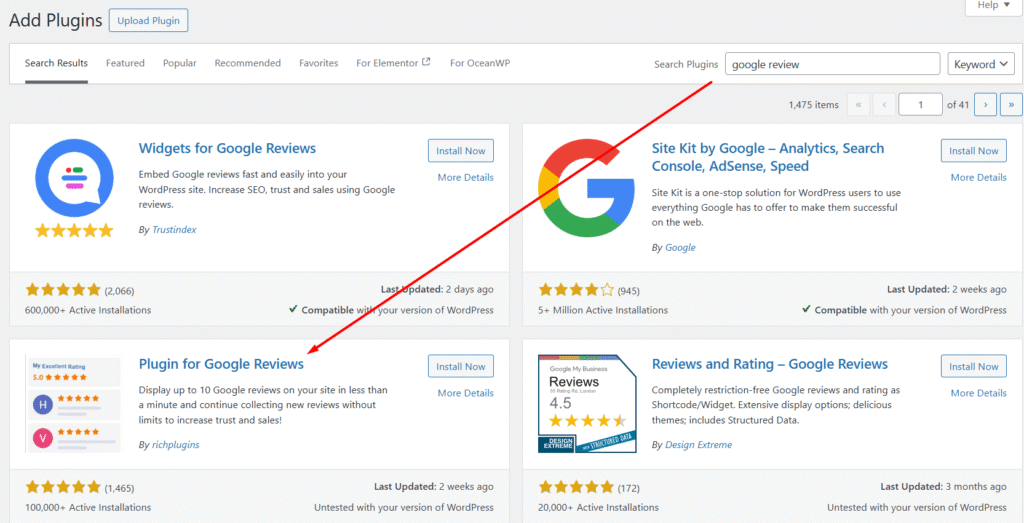
Go to your WordPress dashboard → Plugins → Add New Plugin → Search ‘Google Review’
Install and activate the plugin that I show in the image below.
Step 2:
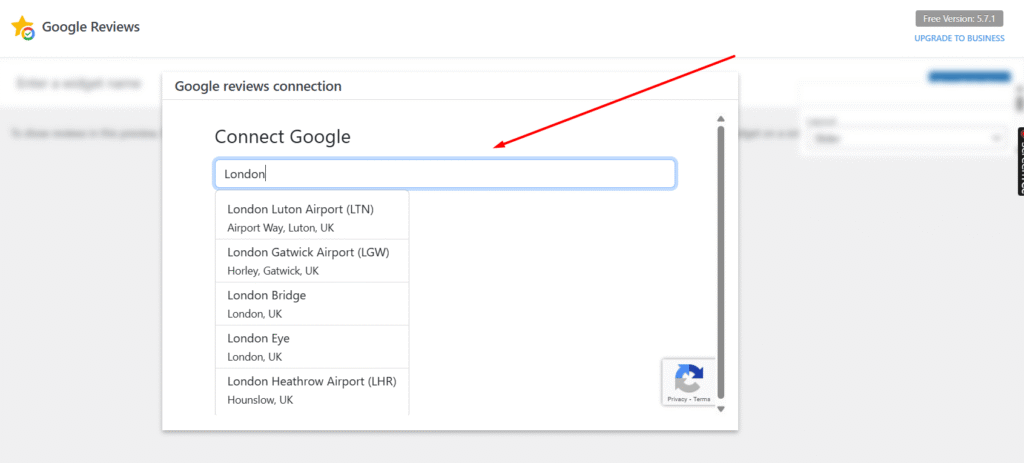
After activating the plugin, you will get an interface like the image below where you will see a search address field.
Search your business address, and you will see it appear below.
Step 3:
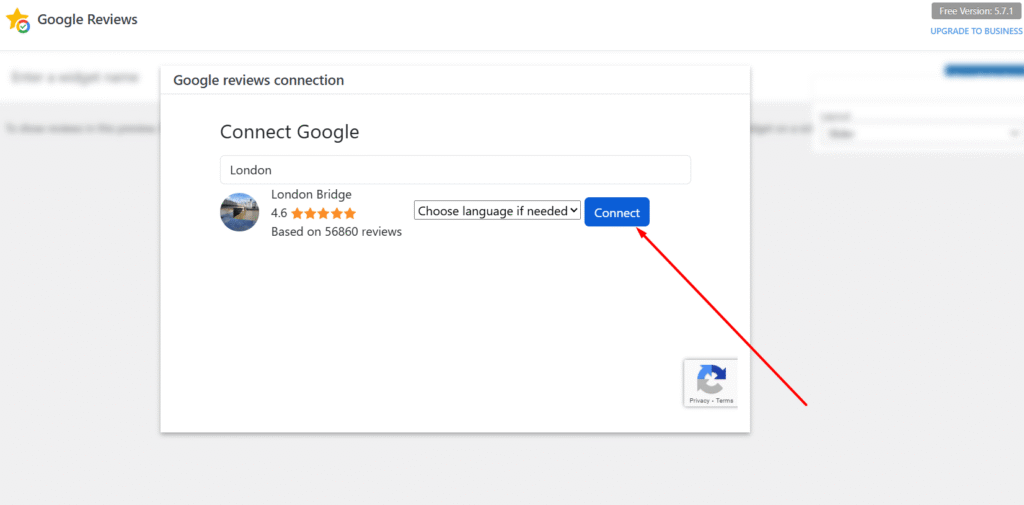
Click on the business address and then click on the Connect button.
After clicking the connect button, it will link to your address and open a new interface of the Google Review plugin.
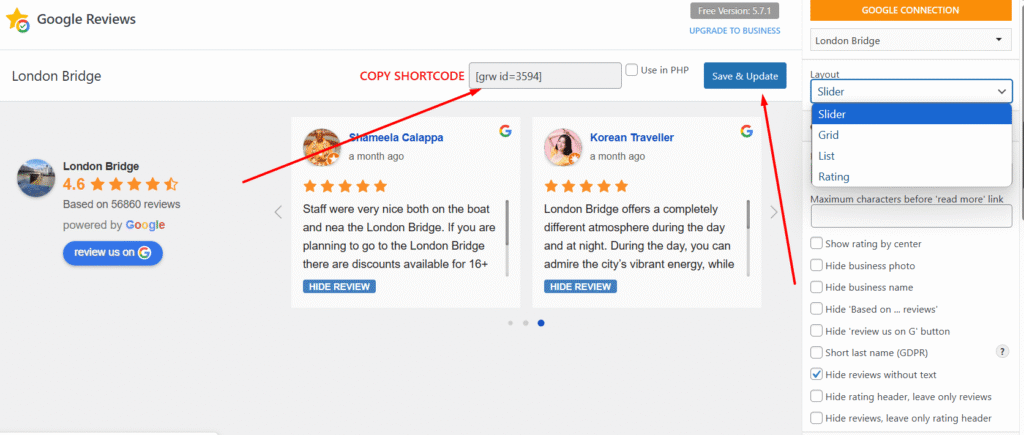
Copy the shortcode and make sure to click Save and Update.
You can also change the style, layout, colors, hide reviews without text, etc., on the left side.
Almost everything is free and very easy to do.
After all the customization is done, just Save and Update.
Step 4:
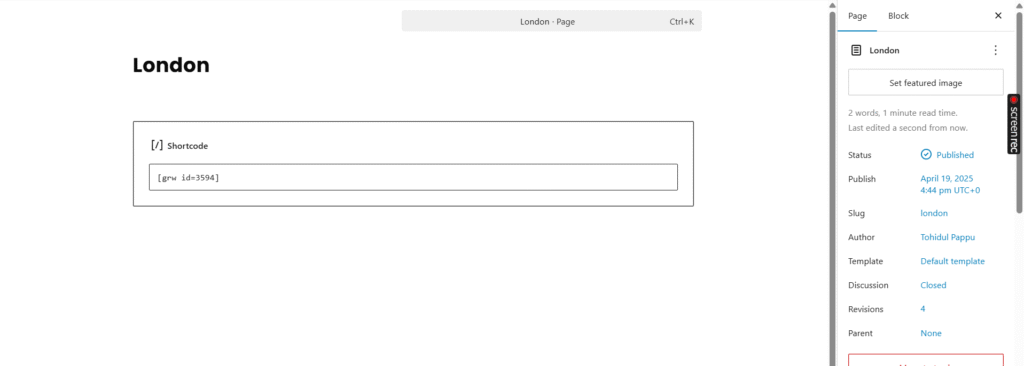
Paste the shortcode that you copied wherever you want to show your Google reviews.
Then the reviews will be displayed with the design that you selected.

This is the easiest way to add Google reviews in a professional design.
Hope this article helped you to add Google reviews to your website.
Thank you. Enjoy.